


4 617
97
4 617
97
MapLoaderAuto is a seamless XML map streaming engine for GTA V that automatically loads and unloads MapEditor maps based on the player’s location. Instead of forcing every custom map to stay loaded at once, MapLoaderAuto lets you build much larger worlds by streaming only the areas you actually enter. The result is a far cleaner, more hands-free way to use multiple custom districts, construction sites, gang areas, docklands, interiors, city expansions, and total conversion-style map setups.
Built for MapEditor XML files, MapLoaderAuto is designed to make map streaming feel natural. Once your zones are configured, there is no manual loading, no menu dependency, and no constant micromanagement. Drive into an area and the map loads automatically. Leave the area and it clears automatically. This makes it ideal for players building custom open worlds, Liberty City projects, district-based expansions, roleplay environments, mission areas, or large multi-map setups that would otherwise be too heavy to keep loaded all at once.
MapLoaderAuto is especially useful for creators who want to split large projects into multiple XML zones for better performance and smoother gameplay. Rather than relying on one massive file, you can organise your world into districts and let the script handle the streaming in the background. With properly tuned load and clear radii, transitions feel smooth and seamless while keeping performance far more manageable than traditional always-loaded map setups.
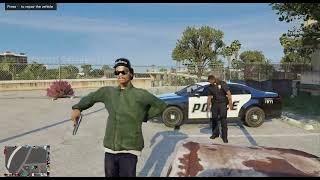
Beyond map streaming, MapLoaderAuto also allows creators to build their own dynamic ambient scenarios directly inside their maps. Using MapEditor XML files, you can place NPCs with weapons, behaviours, and relationships to create small world events and interactive situations. For example, you can stage drug deals happening in back alleys, armed gang gatherings, or even cash collection runs with stockade trucks that players can intercept and rob. These types of scenarios can turn simple map areas into living environments where the player can stumble across criminal activity, defend themselves, or create their own missions organically.
The mod supports automatic area-based streaming, configurable zone positions, adjustable load and clear distances, easy XML placement, and a simple INI-based setup that can be expanded with as many map zones as needed. Whether you are building a custom city expansion, a network of smaller locations, or a huge imported world, MapLoaderAuto gives you a much more practical way to run it in-game.
Key Features
Automatic loading and unloading of MapEditor XML maps
Seamless area-based map streaming
Hands-free operation once configured
Supports multiple zones and multiple XML map files
Create ambient world events using peds, vehicles, and props
Build scenarios such as gang activity, drug deals, or armoured cash transports
Ideal for large custom world projects
Helps reduce the overhead of keeping every map loaded at once
Simple INI setup with adjustable coordinates and radii
Perfect for district streaming, map packs, and total world expansions
Requirements
ScriptHookV
ScriptHookVDotNet
MapEditor
Important
MapLoaderAuto is built for MapEditor XML files. Your maps must be saved in MapEditor XML format for them to load correctly.
Once installed and configured, MapLoaderAuto allows you to build large custom environments that stream naturally into the game world, turning static map packs into living locations filled with activity and opportunity.
Installing MapLoaderAuto
Open your GTA V main directory.
Locate the scripts folder.
If the folder does not exist, create one.
Copy the following files into the scripts folder:
MapLoaderAuto.dll
MapLoaderAuto.ini
Your directory should now look like this:
GTA V
└── scripts
├── MapLoaderAuto.dll
└── MapLoaderAuto.ini
Create the Map Folder
Inside the scripts folder, create a new folder called:
MapLoaderAuto
Your structure should now look like this:
GTA V
└── scripts
├── MapLoaderAuto.dll
├── MapLoaderAuto.ini
└── MapLoaderAuto
This folder is where all of your MapEditor XML maps will be placed.
Installing XML Map Files
Place your MapEditor XML maps inside the new folder:
scripts\MapLoaderAuto\
Example:
GTA V
└── scripts
├── MapLoaderAuto.dll
├── MapLoaderAuto.ini
└── MapLoaderAuto
├── LittleItaly.xml
├── ConstructionYard.xml
├── BrokerDocks.xml
Important:
The MapFile name in the INI must match the XML filename exactly. (including .xml at the end)
Example:
MapFile=LittleItaly.xml
Configuring Map Zones
Open MapLoaderAuto.ini using Notepad.
Each map zone uses a section like this:
[Zone1]
Enabled=true
MapFile=ExampleMap.xml
X=0.0
Y=0.0
Z=0.0
LoadRadius=200.0
ClearRadius=250.0
What Each Setting Does
Enabled
Turns the zone on or off.
MapFile
The XML map file located in the scripts\MapLoaderAuto folder.
X Y Z
The centre coordinates of the map area. USE A TRAINER OR SCRIPT TO GET THE COORDINATES
LoadRadius
Distance from the centre where the map will automatically load.
ClearRadius
Distance where the map will unload after the player leaves.
Important rule:
ClearRadius must always be larger than LoadRadius
This prevents the map from constantly loading and unloading near the edge of the zone.
Adding Multiple Map Zones
You can add as many map zones as you want.
Example:
[Zone1]
Enabled=true
MapFile=LittleItaly.xml
X=3472.0
Y=-2907.0
Z=25.3
LoadRadius=70.0
ClearRadius=100.0
[Zone2]
Enabled=true
MapFile=BrokerDocks.xml
X=5185.0
Y=-3727.0
Z=10.0
LoadRadius=200.0
ClearRadius=250.0
[Zone3]
Enabled=true
MapFile=ConstructionYard.xml
X=4185.0
Y=-2031.0
Z=27.4
LoadRadius=60.0
ClearRadius=90.0
Each zone will automatically stream its XML map when the player enters the area.
PlayerModel UPDATE
PlayerModels= allows you to set which playermodel the map spawns for - define by using 'all' 'player_one/two/zero' 'alladdonpeds' 'addonpedname(i.e Carl Johnson)'
ini example: PlayerModels=player_two,Carl Johnson
Launching the Game
Start GTA V.
Enter Story Mode.
Travel to the zone coordinates you configured.
When you enter the LoadRadius, the map loads automatically.
When you leave the ClearRadius, the map unloads automatically.
No manual loading is required.
Creating Ambient World Events
Using MapEditor XML files you can create your own dynamic ambient scenarios.
Examples include:
Drug deals taking place in alleys
Armed gang gatherings
Security guards protecting locations
Armoured stockade cash collection trucks that players can intercept and rob
Construction sites with workers and vehicles
Dockside cargo operations
By combining props, peds, vehicles and weapons in MapEditor, you can turn simple locations into living world encounters.
Performance Tips
For best performance:
Split very large maps into multiple XML files
Use sensible load radii
Keep related objects together in one district
Test zones by driving in and out of the area
Reload the ini with Numpad *
Troubleshooting
Map does not load
Check:
XML file is inside scripts\MapLoaderAuto
MapFile name matches exactly
Enabled=true
Player enters the LoadRadius
XML file is saved from MapEditor
Map unloads too quickly
Increase ClearRadius.
Example:
LoadRadius=200
ClearRadius=250
Props appear too late - Increase LoadRadius.
Example:
LoadRadius=350
ClearRadius=450
Once configured correctly:
-map loading is automatic
-streaming is seamless
-large world projects become far more practical to run in GTA V
Install your maps, configure your zones, and explore your custom world.
Update Log
Update 1.0.01 - hotfix - xml map loaded Vehicles no longer despawn if driven outside the zone radii (once entered they will now persist outside the clearance coordinates until destroyed or abandoned by 200m)
Update 1.0.2 - File name changed to MapLoaderAuto.
xml npc's group logic and reactions rewritten and improved
Known Bugs/Caveat: xml npc companions will despawn along with their map when the clearance radii are breached - I have implemented a workaround for this with the vehicles and am rewriting the method for companion xml npcs - SOLVED in update 1.0.3
neutral behaviour ai still temperamental but should be improved in 1.0.9
Update 1.0.3 - Companion Retention - MapLoaderAuto now detects NPCs that have been recruited using a (follow me) mod and automatically prevents them from being deleted when their original map zone unloads. Added intelligent retained ped cleanup - Retained followers are automatically cleaned up when they are clearly abandoned or killed. Added zone spawn protection - A new xml identity tracking system prevents duplicated NPC spawns (If a ped from a map zone has been retained and the player later returns to that zone MapLoaderAuto will detect the retained ped and will not spawn them again whilst they are following you). The same duplication logic as npcs now applies for vehicles.
Update 1.0.4 - npc idle actions fix. action props added
Update 1.0.5 - xml npc models occasional float bug fix - smoother streaming method implemented
Update 1.0.6 - sirens on/off xml setting fix
Update 1.0.7 - day and night cycle settings added
Update 1.0.8 - sirens on/off xml setting fix fixed
Update 1.0.9 - playermodel requirement option added to ini - ai relationship
behaviour updated (neutral will now flee if unarmed and attack player as a team if armed - use respect behaviour if you want them on your team)
24hr maps implemented - for continuous cycle use -1,-1 as the times on the zoneday you want to always load and leave zonenight's mapxmlname and time blank - now only zoneday should load 24/7
1.0.9 hotfix - redownload if already installed - 'all' now works and priority for specifically named player models now implemented to the xml loading system
IF THE INI IS TOO COMPLICATED USE VERSION 1.0.6
Built for MapEditor XML files, MapLoaderAuto is designed to make map streaming feel natural. Once your zones are configured, there is no manual loading, no menu dependency, and no constant micromanagement. Drive into an area and the map loads automatically. Leave the area and it clears automatically. This makes it ideal for players building custom open worlds, Liberty City projects, district-based expansions, roleplay environments, mission areas, or large multi-map setups that would otherwise be too heavy to keep loaded all at once.
MapLoaderAuto is especially useful for creators who want to split large projects into multiple XML zones for better performance and smoother gameplay. Rather than relying on one massive file, you can organise your world into districts and let the script handle the streaming in the background. With properly tuned load and clear radii, transitions feel smooth and seamless while keeping performance far more manageable than traditional always-loaded map setups.
Beyond map streaming, MapLoaderAuto also allows creators to build their own dynamic ambient scenarios directly inside their maps. Using MapEditor XML files, you can place NPCs with weapons, behaviours, and relationships to create small world events and interactive situations. For example, you can stage drug deals happening in back alleys, armed gang gatherings, or even cash collection runs with stockade trucks that players can intercept and rob. These types of scenarios can turn simple map areas into living environments where the player can stumble across criminal activity, defend themselves, or create their own missions organically.
The mod supports automatic area-based streaming, configurable zone positions, adjustable load and clear distances, easy XML placement, and a simple INI-based setup that can be expanded with as many map zones as needed. Whether you are building a custom city expansion, a network of smaller locations, or a huge imported world, MapLoaderAuto gives you a much more practical way to run it in-game.
Key Features
Automatic loading and unloading of MapEditor XML maps
Seamless area-based map streaming
Hands-free operation once configured
Supports multiple zones and multiple XML map files
Create ambient world events using peds, vehicles, and props
Build scenarios such as gang activity, drug deals, or armoured cash transports
Ideal for large custom world projects
Helps reduce the overhead of keeping every map loaded at once
Simple INI setup with adjustable coordinates and radii
Perfect for district streaming, map packs, and total world expansions
Requirements
ScriptHookV
ScriptHookVDotNet
MapEditor
Important
MapLoaderAuto is built for MapEditor XML files. Your maps must be saved in MapEditor XML format for them to load correctly.
Once installed and configured, MapLoaderAuto allows you to build large custom environments that stream naturally into the game world, turning static map packs into living locations filled with activity and opportunity.
Installing MapLoaderAuto
Open your GTA V main directory.
Locate the scripts folder.
If the folder does not exist, create one.
Copy the following files into the scripts folder:
MapLoaderAuto.dll
MapLoaderAuto.ini
Your directory should now look like this:
GTA V
└── scripts
├── MapLoaderAuto.dll
└── MapLoaderAuto.ini
Create the Map Folder
Inside the scripts folder, create a new folder called:
MapLoaderAuto
Your structure should now look like this:
GTA V
└── scripts
├── MapLoaderAuto.dll
├── MapLoaderAuto.ini
└── MapLoaderAuto
This folder is where all of your MapEditor XML maps will be placed.
Installing XML Map Files
Place your MapEditor XML maps inside the new folder:
scripts\MapLoaderAuto\
Example:
GTA V
└── scripts
├── MapLoaderAuto.dll
├── MapLoaderAuto.ini
└── MapLoaderAuto
├── LittleItaly.xml
├── ConstructionYard.xml
├── BrokerDocks.xml
Important:
The MapFile name in the INI must match the XML filename exactly. (including .xml at the end)
Example:
MapFile=LittleItaly.xml
Configuring Map Zones
Open MapLoaderAuto.ini using Notepad.
Each map zone uses a section like this:
[Zone1]
Enabled=true
MapFile=ExampleMap.xml
X=0.0
Y=0.0
Z=0.0
LoadRadius=200.0
ClearRadius=250.0
What Each Setting Does
Enabled
Turns the zone on or off.
MapFile
The XML map file located in the scripts\MapLoaderAuto folder.
X Y Z
The centre coordinates of the map area. USE A TRAINER OR SCRIPT TO GET THE COORDINATES
LoadRadius
Distance from the centre where the map will automatically load.
ClearRadius
Distance where the map will unload after the player leaves.
Important rule:
ClearRadius must always be larger than LoadRadius
This prevents the map from constantly loading and unloading near the edge of the zone.
Adding Multiple Map Zones
You can add as many map zones as you want.
Example:
[Zone1]
Enabled=true
MapFile=LittleItaly.xml
X=3472.0
Y=-2907.0
Z=25.3
LoadRadius=70.0
ClearRadius=100.0
[Zone2]
Enabled=true
MapFile=BrokerDocks.xml
X=5185.0
Y=-3727.0
Z=10.0
LoadRadius=200.0
ClearRadius=250.0
[Zone3]
Enabled=true
MapFile=ConstructionYard.xml
X=4185.0
Y=-2031.0
Z=27.4
LoadRadius=60.0
ClearRadius=90.0
Each zone will automatically stream its XML map when the player enters the area.
PlayerModel UPDATE
PlayerModels= allows you to set which playermodel the map spawns for - define by using 'all' 'player_one/two/zero' 'alladdonpeds' 'addonpedname(i.e Carl Johnson)'
ini example: PlayerModels=player_two,Carl Johnson
Launching the Game
Start GTA V.
Enter Story Mode.
Travel to the zone coordinates you configured.
When you enter the LoadRadius, the map loads automatically.
When you leave the ClearRadius, the map unloads automatically.
No manual loading is required.
Creating Ambient World Events
Using MapEditor XML files you can create your own dynamic ambient scenarios.
Examples include:
Drug deals taking place in alleys
Armed gang gatherings
Security guards protecting locations
Armoured stockade cash collection trucks that players can intercept and rob
Construction sites with workers and vehicles
Dockside cargo operations
By combining props, peds, vehicles and weapons in MapEditor, you can turn simple locations into living world encounters.
Performance Tips
For best performance:
Split very large maps into multiple XML files
Use sensible load radii
Keep related objects together in one district
Test zones by driving in and out of the area
Reload the ini with Numpad *
Troubleshooting
Map does not load
Check:
XML file is inside scripts\MapLoaderAuto
MapFile name matches exactly
Enabled=true
Player enters the LoadRadius
XML file is saved from MapEditor
Map unloads too quickly
Increase ClearRadius.
Example:
LoadRadius=200
ClearRadius=250
Props appear too late - Increase LoadRadius.
Example:
LoadRadius=350
ClearRadius=450
Once configured correctly:
-map loading is automatic
-streaming is seamless
-large world projects become far more practical to run in GTA V
Install your maps, configure your zones, and explore your custom world.
Update Log
Update 1.0.01 - hotfix - xml map loaded Vehicles no longer despawn if driven outside the zone radii (once entered they will now persist outside the clearance coordinates until destroyed or abandoned by 200m)
Update 1.0.2 - File name changed to MapLoaderAuto.
xml npc's group logic and reactions rewritten and improved
Known Bugs/Caveat: xml npc companions will despawn along with their map when the clearance radii are breached - I have implemented a workaround for this with the vehicles and am rewriting the method for companion xml npcs - SOLVED in update 1.0.3
neutral behaviour ai still temperamental but should be improved in 1.0.9
Update 1.0.3 - Companion Retention - MapLoaderAuto now detects NPCs that have been recruited using a (follow me) mod and automatically prevents them from being deleted when their original map zone unloads. Added intelligent retained ped cleanup - Retained followers are automatically cleaned up when they are clearly abandoned or killed. Added zone spawn protection - A new xml identity tracking system prevents duplicated NPC spawns (If a ped from a map zone has been retained and the player later returns to that zone MapLoaderAuto will detect the retained ped and will not spawn them again whilst they are following you). The same duplication logic as npcs now applies for vehicles.
Update 1.0.4 - npc idle actions fix. action props added
Update 1.0.5 - xml npc models occasional float bug fix - smoother streaming method implemented
Update 1.0.6 - sirens on/off xml setting fix
Update 1.0.7 - day and night cycle settings added
Update 1.0.8 - sirens on/off xml setting fix fixed
Update 1.0.9 - playermodel requirement option added to ini - ai relationship
behaviour updated (neutral will now flee if unarmed and attack player as a team if armed - use respect behaviour if you want them on your team)
24hr maps implemented - for continuous cycle use -1,-1 as the times on the zoneday you want to always load and leave zonenight's mapxmlname and time blank - now only zoneday should load 24/7
1.0.9 hotfix - redownload if already installed - 'all' now works and priority for specifically named player models now implemented to the xml loading system
IF THE INI IS TOO COMPLICATED USE VERSION 1.0.6
Première mise en ligne : 14 mars 2026
Dernière mise à jour : 12 avril 2026
Téléchargé pour la dernière fois : il y a 19 minutes
103 commentaires
More mods by ChargedKILO:
MapLoaderAuto is a seamless XML map streaming engine for GTA V that automatically loads and unloads MapEditor maps based on the player’s location. Instead of forcing every custom map to stay loaded at once, MapLoaderAuto lets you build much larger worlds by streaming only the areas you actually enter. The result is a far cleaner, more hands-free way to use multiple custom districts, construction sites, gang areas, docklands, interiors, city expansions, and total conversion-style map setups.
Built for MapEditor XML files, MapLoaderAuto is designed to make map streaming feel natural. Once your zones are configured, there is no manual loading, no menu dependency, and no constant micromanagement. Drive into an area and the map loads automatically. Leave the area and it clears automatically. This makes it ideal for players building custom open worlds, Liberty City projects, district-based expansions, roleplay environments, mission areas, or large multi-map setups that would otherwise be too heavy to keep loaded all at once.
MapLoaderAuto is especially useful for creators who want to split large projects into multiple XML zones for better performance and smoother gameplay. Rather than relying on one massive file, you can organise your world into districts and let the script handle the streaming in the background. With properly tuned load and clear radii, transitions feel smooth and seamless while keeping performance far more manageable than traditional always-loaded map setups.
Beyond map streaming, MapLoaderAuto also allows creators to build their own dynamic ambient scenarios directly inside their maps. Using MapEditor XML files, you can place NPCs with weapons, behaviours, and relationships to create small world events and interactive situations. For example, you can stage drug deals happening in back alleys, armed gang gatherings, or even cash collection runs with stockade trucks that players can intercept and rob. These types of scenarios can turn simple map areas into living environments where the player can stumble across criminal activity, defend themselves, or create their own missions organically.
The mod supports automatic area-based streaming, configurable zone positions, adjustable load and clear distances, easy XML placement, and a simple INI-based setup that can be expanded with as many map zones as needed. Whether you are building a custom city expansion, a network of smaller locations, or a huge imported world, MapLoaderAuto gives you a much more practical way to run it in-game.
Key Features
Automatic loading and unloading of MapEditor XML maps
Seamless area-based map streaming
Hands-free operation once configured
Supports multiple zones and multiple XML map files
Create ambient world events using peds, vehicles, and props
Build scenarios such as gang activity, drug deals, or armoured cash transports
Ideal for large custom world projects
Helps reduce the overhead of keeping every map loaded at once
Simple INI setup with adjustable coordinates and radii
Perfect for district streaming, map packs, and total world expansions
Requirements
ScriptHookV
ScriptHookVDotNet
MapEditor
Important
MapLoaderAuto is built for MapEditor XML files. Your maps must be saved in MapEditor XML format for them to load correctly.
Once installed and configured, MapLoaderAuto allows you to build large custom environments that stream naturally into the game world, turning static map packs into living locations filled with activity and opportunity.
Installing MapLoaderAuto
Open your GTA V main directory.
Locate the scripts folder.
If the folder does not exist, create one.
Copy the following files into the scripts folder:
MapLoaderAuto.dll
MapLoaderAuto.ini
Your directory should now look like this:
GTA V
└── scripts
├── MapLoaderAuto.dll
└── MapLoaderAuto.ini
Create the Map Folder
Inside the scripts folder, create a new folder called:
MapLoaderAuto
Your structure should now look like this:
GTA V
└── scripts
├── MapLoaderAuto.dll
├── MapLoaderAuto.ini
└── MapLoaderAuto
This folder is where all of your MapEditor XML maps will be placed.
Installing XML Map Files
Place your MapEditor XML maps inside the new folder:
scripts\MapLoaderAuto\
Example:
GTA V
└── scripts
├── MapLoaderAuto.dll
├── MapLoaderAuto.ini
└── MapLoaderAuto
├── LittleItaly.xml
├── ConstructionYard.xml
├── BrokerDocks.xml
Important:
The MapFile name in the INI must match the XML filename exactly. (including .xml at the end)
Example:
MapFile=LittleItaly.xml
Configuring Map Zones
Open MapLoaderAuto.ini using Notepad.
Each map zone uses a section like this:
[Zone1]
Enabled=true
MapFile=ExampleMap.xml
X=0.0
Y=0.0
Z=0.0
LoadRadius=200.0
ClearRadius=250.0
What Each Setting Does
Enabled
Turns the zone on or off.
MapFile
The XML map file located in the scripts\MapLoaderAuto folder.
X Y Z
The centre coordinates of the map area. USE A TRAINER OR SCRIPT TO GET THE COORDINATES
LoadRadius
Distance from the centre where the map will automatically load.
ClearRadius
Distance where the map will unload after the player leaves.
Important rule:
ClearRadius must always be larger than LoadRadius
This prevents the map from constantly loading and unloading near the edge of the zone.
Adding Multiple Map Zones
You can add as many map zones as you want.
Example:
[Zone1]
Enabled=true
MapFile=LittleItaly.xml
X=3472.0
Y=-2907.0
Z=25.3
LoadRadius=70.0
ClearRadius=100.0
[Zone2]
Enabled=true
MapFile=BrokerDocks.xml
X=5185.0
Y=-3727.0
Z=10.0
LoadRadius=200.0
ClearRadius=250.0
[Zone3]
Enabled=true
MapFile=ConstructionYard.xml
X=4185.0
Y=-2031.0
Z=27.4
LoadRadius=60.0
ClearRadius=90.0
Each zone will automatically stream its XML map when the player enters the area.
PlayerModel UPDATE
PlayerModels= allows you to set which playermodel the map spawns for - define by using 'all' 'player_one/two/zero' 'alladdonpeds' 'addonpedname(i.e Carl Johnson)'
ini example: PlayerModels=player_two,Carl Johnson
Launching the Game
Start GTA V.
Enter Story Mode.
Travel to the zone coordinates you configured.
When you enter the LoadRadius, the map loads automatically.
When you leave the ClearRadius, the map unloads automatically.
No manual loading is required.
Creating Ambient World Events
Using MapEditor XML files you can create your own dynamic ambient scenarios.
Examples include:
Drug deals taking place in alleys
Armed gang gatherings
Security guards protecting locations
Armoured stockade cash collection trucks that players can intercept and rob
Construction sites with workers and vehicles
Dockside cargo operations
By combining props, peds, vehicles and weapons in MapEditor, you can turn simple locations into living world encounters.
Performance Tips
For best performance:
Split very large maps into multiple XML files
Use sensible load radii
Keep related objects together in one district
Test zones by driving in and out of the area
Reload the ini with Numpad *
Troubleshooting
Map does not load
Check:
XML file is inside scripts\MapLoaderAuto
MapFile name matches exactly
Enabled=true
Player enters the LoadRadius
XML file is saved from MapEditor
Map unloads too quickly
Increase ClearRadius.
Example:
LoadRadius=200
ClearRadius=250
Props appear too late - Increase LoadRadius.
Example:
LoadRadius=350
ClearRadius=450
Once configured correctly:
-map loading is automatic
-streaming is seamless
-large world projects become far more practical to run in GTA V
Install your maps, configure your zones, and explore your custom world.
Update Log
Update 1.0.01 - hotfix - xml map loaded Vehicles no longer despawn if driven outside the zone radii (once entered they will now persist outside the clearance coordinates until destroyed or abandoned by 200m)
Update 1.0.2 - File name changed to MapLoaderAuto.
xml npc's group logic and reactions rewritten and improved
Known Bugs/Caveat: xml npc companions will despawn along with their map when the clearance radii are breached - I have implemented a workaround for this with the vehicles and am rewriting the method for companion xml npcs - SOLVED in update 1.0.3
neutral behaviour ai still temperamental but should be improved in 1.0.9
Update 1.0.3 - Companion Retention - MapLoaderAuto now detects NPCs that have been recruited using a (follow me) mod and automatically prevents them from being deleted when their original map zone unloads. Added intelligent retained ped cleanup - Retained followers are automatically cleaned up when they are clearly abandoned or killed. Added zone spawn protection - A new xml identity tracking system prevents duplicated NPC spawns (If a ped from a map zone has been retained and the player later returns to that zone MapLoaderAuto will detect the retained ped and will not spawn them again whilst they are following you). The same duplication logic as npcs now applies for vehicles.
Update 1.0.4 - npc idle actions fix. action props added
Update 1.0.5 - xml npc models occasional float bug fix - smoother streaming method implemented
Update 1.0.6 - sirens on/off xml setting fix
Update 1.0.7 - day and night cycle settings added
Update 1.0.8 - sirens on/off xml setting fix fixed
Update 1.0.9 - playermodel requirement option added to ini - ai relationship
behaviour updated (neutral will now flee if unarmed and attack player as a team if armed - use respect behaviour if you want them on your team)
24hr maps implemented - for continuous cycle use -1,-1 as the times on the zoneday you want to always load and leave zonenight's mapxmlname and time blank - now only zoneday should load 24/7
1.0.9 hotfix - redownload if already installed - 'all' now works and priority for specifically named player models now implemented to the xml loading system
IF THE INI IS TOO COMPLICATED USE VERSION 1.0.6
Built for MapEditor XML files, MapLoaderAuto is designed to make map streaming feel natural. Once your zones are configured, there is no manual loading, no menu dependency, and no constant micromanagement. Drive into an area and the map loads automatically. Leave the area and it clears automatically. This makes it ideal for players building custom open worlds, Liberty City projects, district-based expansions, roleplay environments, mission areas, or large multi-map setups that would otherwise be too heavy to keep loaded all at once.
MapLoaderAuto is especially useful for creators who want to split large projects into multiple XML zones for better performance and smoother gameplay. Rather than relying on one massive file, you can organise your world into districts and let the script handle the streaming in the background. With properly tuned load and clear radii, transitions feel smooth and seamless while keeping performance far more manageable than traditional always-loaded map setups.
Beyond map streaming, MapLoaderAuto also allows creators to build their own dynamic ambient scenarios directly inside their maps. Using MapEditor XML files, you can place NPCs with weapons, behaviours, and relationships to create small world events and interactive situations. For example, you can stage drug deals happening in back alleys, armed gang gatherings, or even cash collection runs with stockade trucks that players can intercept and rob. These types of scenarios can turn simple map areas into living environments where the player can stumble across criminal activity, defend themselves, or create their own missions organically.
The mod supports automatic area-based streaming, configurable zone positions, adjustable load and clear distances, easy XML placement, and a simple INI-based setup that can be expanded with as many map zones as needed. Whether you are building a custom city expansion, a network of smaller locations, or a huge imported world, MapLoaderAuto gives you a much more practical way to run it in-game.
Key Features
Automatic loading and unloading of MapEditor XML maps
Seamless area-based map streaming
Hands-free operation once configured
Supports multiple zones and multiple XML map files
Create ambient world events using peds, vehicles, and props
Build scenarios such as gang activity, drug deals, or armoured cash transports
Ideal for large custom world projects
Helps reduce the overhead of keeping every map loaded at once
Simple INI setup with adjustable coordinates and radii
Perfect for district streaming, map packs, and total world expansions
Requirements
ScriptHookV
ScriptHookVDotNet
MapEditor
Important
MapLoaderAuto is built for MapEditor XML files. Your maps must be saved in MapEditor XML format for them to load correctly.
Once installed and configured, MapLoaderAuto allows you to build large custom environments that stream naturally into the game world, turning static map packs into living locations filled with activity and opportunity.
Installing MapLoaderAuto
Open your GTA V main directory.
Locate the scripts folder.
If the folder does not exist, create one.
Copy the following files into the scripts folder:
MapLoaderAuto.dll
MapLoaderAuto.ini
Your directory should now look like this:
GTA V
└── scripts
├── MapLoaderAuto.dll
└── MapLoaderAuto.ini
Create the Map Folder
Inside the scripts folder, create a new folder called:
MapLoaderAuto
Your structure should now look like this:
GTA V
└── scripts
├── MapLoaderAuto.dll
├── MapLoaderAuto.ini
└── MapLoaderAuto
This folder is where all of your MapEditor XML maps will be placed.
Installing XML Map Files
Place your MapEditor XML maps inside the new folder:
scripts\MapLoaderAuto\
Example:
GTA V
└── scripts
├── MapLoaderAuto.dll
├── MapLoaderAuto.ini
└── MapLoaderAuto
├── LittleItaly.xml
├── ConstructionYard.xml
├── BrokerDocks.xml
Important:
The MapFile name in the INI must match the XML filename exactly. (including .xml at the end)
Example:
MapFile=LittleItaly.xml
Configuring Map Zones
Open MapLoaderAuto.ini using Notepad.
Each map zone uses a section like this:
[Zone1]
Enabled=true
MapFile=ExampleMap.xml
X=0.0
Y=0.0
Z=0.0
LoadRadius=200.0
ClearRadius=250.0
What Each Setting Does
Enabled
Turns the zone on or off.
MapFile
The XML map file located in the scripts\MapLoaderAuto folder.
X Y Z
The centre coordinates of the map area. USE A TRAINER OR SCRIPT TO GET THE COORDINATES
LoadRadius
Distance from the centre where the map will automatically load.
ClearRadius
Distance where the map will unload after the player leaves.
Important rule:
ClearRadius must always be larger than LoadRadius
This prevents the map from constantly loading and unloading near the edge of the zone.
Adding Multiple Map Zones
You can add as many map zones as you want.
Example:
[Zone1]
Enabled=true
MapFile=LittleItaly.xml
X=3472.0
Y=-2907.0
Z=25.3
LoadRadius=70.0
ClearRadius=100.0
[Zone2]
Enabled=true
MapFile=BrokerDocks.xml
X=5185.0
Y=-3727.0
Z=10.0
LoadRadius=200.0
ClearRadius=250.0
[Zone3]
Enabled=true
MapFile=ConstructionYard.xml
X=4185.0
Y=-2031.0
Z=27.4
LoadRadius=60.0
ClearRadius=90.0
Each zone will automatically stream its XML map when the player enters the area.
PlayerModel UPDATE
PlayerModels= allows you to set which playermodel the map spawns for - define by using 'all' 'player_one/two/zero' 'alladdonpeds' 'addonpedname(i.e Carl Johnson)'
ini example: PlayerModels=player_two,Carl Johnson
Launching the Game
Start GTA V.
Enter Story Mode.
Travel to the zone coordinates you configured.
When you enter the LoadRadius, the map loads automatically.
When you leave the ClearRadius, the map unloads automatically.
No manual loading is required.
Creating Ambient World Events
Using MapEditor XML files you can create your own dynamic ambient scenarios.
Examples include:
Drug deals taking place in alleys
Armed gang gatherings
Security guards protecting locations
Armoured stockade cash collection trucks that players can intercept and rob
Construction sites with workers and vehicles
Dockside cargo operations
By combining props, peds, vehicles and weapons in MapEditor, you can turn simple locations into living world encounters.
Performance Tips
For best performance:
Split very large maps into multiple XML files
Use sensible load radii
Keep related objects together in one district
Test zones by driving in and out of the area
Reload the ini with Numpad *
Troubleshooting
Map does not load
Check:
XML file is inside scripts\MapLoaderAuto
MapFile name matches exactly
Enabled=true
Player enters the LoadRadius
XML file is saved from MapEditor
Map unloads too quickly
Increase ClearRadius.
Example:
LoadRadius=200
ClearRadius=250
Props appear too late - Increase LoadRadius.
Example:
LoadRadius=350
ClearRadius=450
Once configured correctly:
-map loading is automatic
-streaming is seamless
-large world projects become far more practical to run in GTA V
Install your maps, configure your zones, and explore your custom world.
Update Log
Update 1.0.01 - hotfix - xml map loaded Vehicles no longer despawn if driven outside the zone radii (once entered they will now persist outside the clearance coordinates until destroyed or abandoned by 200m)
Update 1.0.2 - File name changed to MapLoaderAuto.
xml npc's group logic and reactions rewritten and improved
Known Bugs/Caveat: xml npc companions will despawn along with their map when the clearance radii are breached - I have implemented a workaround for this with the vehicles and am rewriting the method for companion xml npcs - SOLVED in update 1.0.3
neutral behaviour ai still temperamental but should be improved in 1.0.9
Update 1.0.3 - Companion Retention - MapLoaderAuto now detects NPCs that have been recruited using a (follow me) mod and automatically prevents them from being deleted when their original map zone unloads. Added intelligent retained ped cleanup - Retained followers are automatically cleaned up when they are clearly abandoned or killed. Added zone spawn protection - A new xml identity tracking system prevents duplicated NPC spawns (If a ped from a map zone has been retained and the player later returns to that zone MapLoaderAuto will detect the retained ped and will not spawn them again whilst they are following you). The same duplication logic as npcs now applies for vehicles.
Update 1.0.4 - npc idle actions fix. action props added
Update 1.0.5 - xml npc models occasional float bug fix - smoother streaming method implemented
Update 1.0.6 - sirens on/off xml setting fix
Update 1.0.7 - day and night cycle settings added
Update 1.0.8 - sirens on/off xml setting fix fixed
Update 1.0.9 - playermodel requirement option added to ini - ai relationship
behaviour updated (neutral will now flee if unarmed and attack player as a team if armed - use respect behaviour if you want them on your team)
24hr maps implemented - for continuous cycle use -1,-1 as the times on the zoneday you want to always load and leave zonenight's mapxmlname and time blank - now only zoneday should load 24/7
1.0.9 hotfix - redownload if already installed - 'all' now works and priority for specifically named player models now implemented to the xml loading system
IF THE INI IS TOO COMPLICATED USE VERSION 1.0.6
Première mise en ligne : 14 mars 2026
Dernière mise à jour : 12 avril 2026
Téléchargé pour la dernière fois : il y a 19 minutes
 5mods on Discord

@GTA 5 LOVER 1000 that's not my game i'm just the writer - wish i knew
@ModernPlebeian314 glad you got it working - hope you enjoy - the ini settings are a bit complicated i know bit i prefer that the user has as much customisation as poss.
@Averageli5 for now make sure the cops are neutral+armed and runaway peds are neutral+unarmed - i'll work on it but it's very much to do with how the game recognises xml spawned peds (ped type complicates their ai reaction too as that's very much heavily built in by R*) - tricky as fuck because the npc intelligence is so stupid yet so brilliant in it's own way - i'll try and sort
@ChargedKILO I've been meaning to ask how you were managing the relationships, I've got a way to approach this, still, the offer for help, is there.
@thalilmythos thanks i appreciate it - think i've got a handle on it but will give you a shout at some point for sure
hotfix for 1.0.9 released - redownload if already installed - 'playermodels=all' now works properly and i've implemented priority to specifically named playermodel zones so no duplicate maps should load...
nice
Once again, thank you for this great mod! I know this may be a mod editor limitation, but is there any way to keep non emergency vehicle headlights/tail lights on like we can do with sirens when a map spawns?
@AdamHall thankyou but sadly not possible as there’s no function for that in mapeditor - I’ll look a bit more into it but looks unlikely
@ChargedKILO appreciate you!!
Me again :) question, I noticed for my maps, as I approach the vehicles are floating in the air and drop into position as I get closer, any way to prevent that?
@AdamHall have you tried increasing the load zone? Works best if you give things a chance to load in properly before you get to your main scenario point — try increasing by 50-100. Let me know if that solves it if not I’ll take a look
So I have the load/clear radius set to 400...maybe that's too much and causing it? As the vehicles seem to be up in the air quite far away and as I get closer they drop into position
@AdamHall load and clear should be different - I’ve tested the latest public version and doesn’t happen at my end - try load 120 clear 125 and see what happens - if that works then go higher but make sure clear is slightly higher — I’m away for a bit now but will check it out in a couple weeks when I’m back
@ChargedKILO Hey bro, is there any way to add Menyoo map compatibility? Menyoo has way more animations to make maps more vibrant, and you can edit cars much better. Or could you share the source code to add that functionality, even for personal use? If you share it, please give credit. Thanks for this excellent mod.
@VICTOR RIVERA i have MenyooMapLoaderAuto in beta - might upload after some more testing
@ChargedKILO bro, I really need MenyooMapLoaderAuto. Menyoo is much simpler to use than MapEditor, so please release MenyooMapLoaderAuto as soon as possible
@ChargedKILO So, ymap with xml extension is not compatible?
@bruhheso only loads mapxmls built with mapeditor in this version
Does this work with https://www.gta5-mods.com/scripts/map-builder-forge